Minimized workout
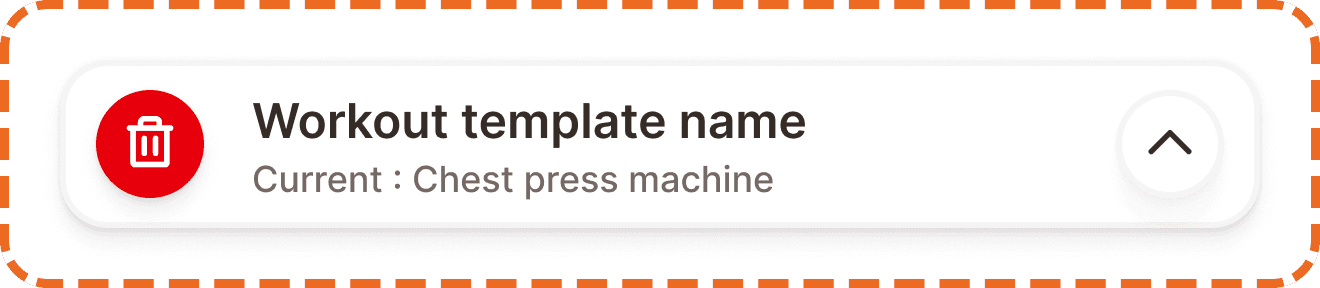
The minimized workout is a compact floating bar that appears when the user navigates away from an active workout session without ending it. It persists across all screens (home, library, social, profile) as a constant reminder that a workout is in progress, and provides a one tap path back to the full workout view.
This component solves a common gym scenario: the user pauses mid workout to check their program library, browse exercises, or respond to a social notification. The minimized bar ensures they never lose track of their active session and can return instantly. It is the workout equivalent of a media player's mini player bar.
When to use
Use a minimized workout:
Whenever the user navigates away from the active workout screen while a session is still in progress.
On every main app screen (home, library, social, profile) as a floating element above the tap bar.
Don't use a minimized workout:
When no workout is in progress. The bar only appears during an active session.
On the active workout screen itself. The full workout topper and exercise table are visible there; the minimized bar would be redundant.
After the workout has been completed or discarded. The bar disappears immediately when the session ends.
Structure
The minimized workout is a horizontal bar (400px max width) containing three elements separated by a 16px gap.
Container
White background (broz-bg/neutral/light/default), 2px border (broz-borders/subtler, 5% opacity), 12px border radius (radius/md), 12px horizontal padding (padding/lg), 8px vertical padding (padding/md), medium shadow (shadow/md).
Stop button (left)
A 36x36px circular button (fully rounded, radius/rounded 9999px) with a red danger fill (broz-bg/danger/strong/default, #e7000b), matching red border (broz-borders/danger/strong/default), and a white trash icon (20px). This button ends the workout. Tapping it triggers the discard modal (see Modal component) if any sets have been logged, or ends the session directly if nothing has been recorded.
The red color and trash icon make it immediately clear that this is a destructive action, visually distinguished from the neutral expand button on the right.
Text block (center)
The flexible center area (flex-1) showing two lines of text, both truncated with ellipsis if they exceed the available width:
Title shows the workout template name in Inter SemiBold 16px/24px (text/content/body/emphasis, broz-content/neutral/primary #090808). This tells the user which workout is active.
Subtitle shows the current exercise in Inter Medium 12px/16px (text/content/caption/accent, broz-content/neutral/tertiary #756965). Formatted as "Current : [exercise name]" (e.g., "Current : Chest press machine"). This tells the user where they left off.
Expand button (right)
A 36x36px circular button (fully rounded) with white fill (broz-bg/neutral/light/default), neutral border (broz-borders/neutral/light/default, #f6f5f5), small shadow (shadow/sm), and a chevron up icon (20px). Tapping it navigates back to the full workout view, restoring the workout topper and exercise table.
Interaction
Tapping the expand button (chevron up): Returns the user to the full active workout screen. The transition should feel like expanding the bar back into the full workout topper. The user lands exactly where they left off (same exercise, same set).
Tapping the stop button (red trash): Triggers the discard modal ("You have some unsaved changes") if any data has been logged during the session. If the user confirms, the workout ends and the minimized bar disappears. If the user cancels, the bar remains.
Tapping the text area: Also expands back to the full workout view (same behavior as the expand button). The entire center text block acts as a tappable area for convenience, since it is the largest touch zone.
Placement
The minimized workout floats above the tap bar on all main screens. It sits between the scrollable content and the tap bar, similar to how the footer actions component positions itself.
The bar should have a small vertical gap (8 to 12px) above the tap bar to visually separate the two elements.
When the minimized workout is visible, the tap bar remains fully functional. The user can navigate between Home, Social, Workouts, and Profile while the bar persists above the tap bar.
The minimized workout should not overlap with the action button (FAB). If both are present simultaneously, the action button should be hidden or repositioned to avoid visual collision.
Accessibility
Touch target. Both circular buttons are 36x36px, which is below the 44px minimum. Use invisible padding to expand the tappable area of each button to at least 44x44px. The center text block acts as an additional large touch target for expanding.
Screen reader. Announces the component as: "Active workout: [template name], currently on [exercise name]. Stop workout button. Return to workout button." The stop button should announce "Stop workout, destructive" to warn the user of the consequence.
Focus indicator. Both buttons show a visible focus ring when navigated via keyboard. The stop button uses the danger focus ring (focus/danger), and the expand button uses the brand focus ring (focus/brand).
Color independence. The stop button uses both the red fill and the trash icon to communicate its destructive nature. The expand button uses a neutral white fill with a directional chevron up icon to communicate expansion.
Content
Title shows the workout template name exactly as the user created it. Truncated with ellipsis on one line if it exceeds the available width.
Subtitle follows the format "Current : [exercise name]" using the common gym name of the exercise. The colon separates the label from the value. Truncated with ellipsis on one line.
"Current : Chest press machine" is good. Clear, specific, tells the user exactly where they are.
"Current exercise" without the name is bad. The user needs to know which exercise they were on to decide whether to return now.
Best practices
The minimized workout should appear instantly when the user navigates away from the active workout screen. No delay, no animation for the initial appearance. The bar must be visible the moment the new screen renders.
The minimized workout disappears permanently when the workout ends (either completed or discarded). It does not linger or animate out slowly.
The stop button should always trigger the discard modal when data has been logged. Never silently end a workout that contains recorded sets.
The subtitle should update in real time if the user was mid way through an exercise. If they completed set 3 of 5 on the Chest Press Machine and then navigated away, the subtitle should still show "Current : Chest press machine" so they know exactly where to pick up.
This component is closely related to the Workout Topper: the minimized workout is conceptually the "collapsed out of context" version of the topper. When the user taps expand, they return to the full topper view. Consider animating the transition to reinforce this connection.
