Keyboard
A keyboard is a custom input panel that replaces the system keyboard when editing exercise table cells. Instead of a generic numeric keyboard, Muba shows a purpose built panel with preset values, quick selectors, and contextual navigation tailored to the specific data being entered (reps, rest time, set type, or weight).
Custom keyboards are what make Muba dramatically faster than typing numbers on a standard keypad. A user setting up a workout template can define 5 sets of 12 reps with 2 minutes rest in a few taps, without ever typing a single digit. During an active workout, the in-workout keyboard lets users log weight and reps with the same speed. This component is central to the app's value proposition of making workout tracking effortless.
When to use
Use a keyboard:
When the user taps a cell in the exercise table (reps, rest, type, or weight) and needs to enter or change a value.
As a replacement for the system keyboard in all exercise data entry contexts.
During both template editing (defining target values) and active workout sessions (logging actual performance).
Don't use a keyboard:
For general text input (exercise names, notes, search). Use the system keyboard for those.
For selecting from a long list of options. Use a dropdown or search input instead.
Outside of the exercise table context. The keyboard is purpose built for workout data entry.
Types
The keyboard has 4 variant modes, some with sub types.
Reps (variant=reps)
Used when editing the reps cell in the exercise table. Supports three sub types via the type property.
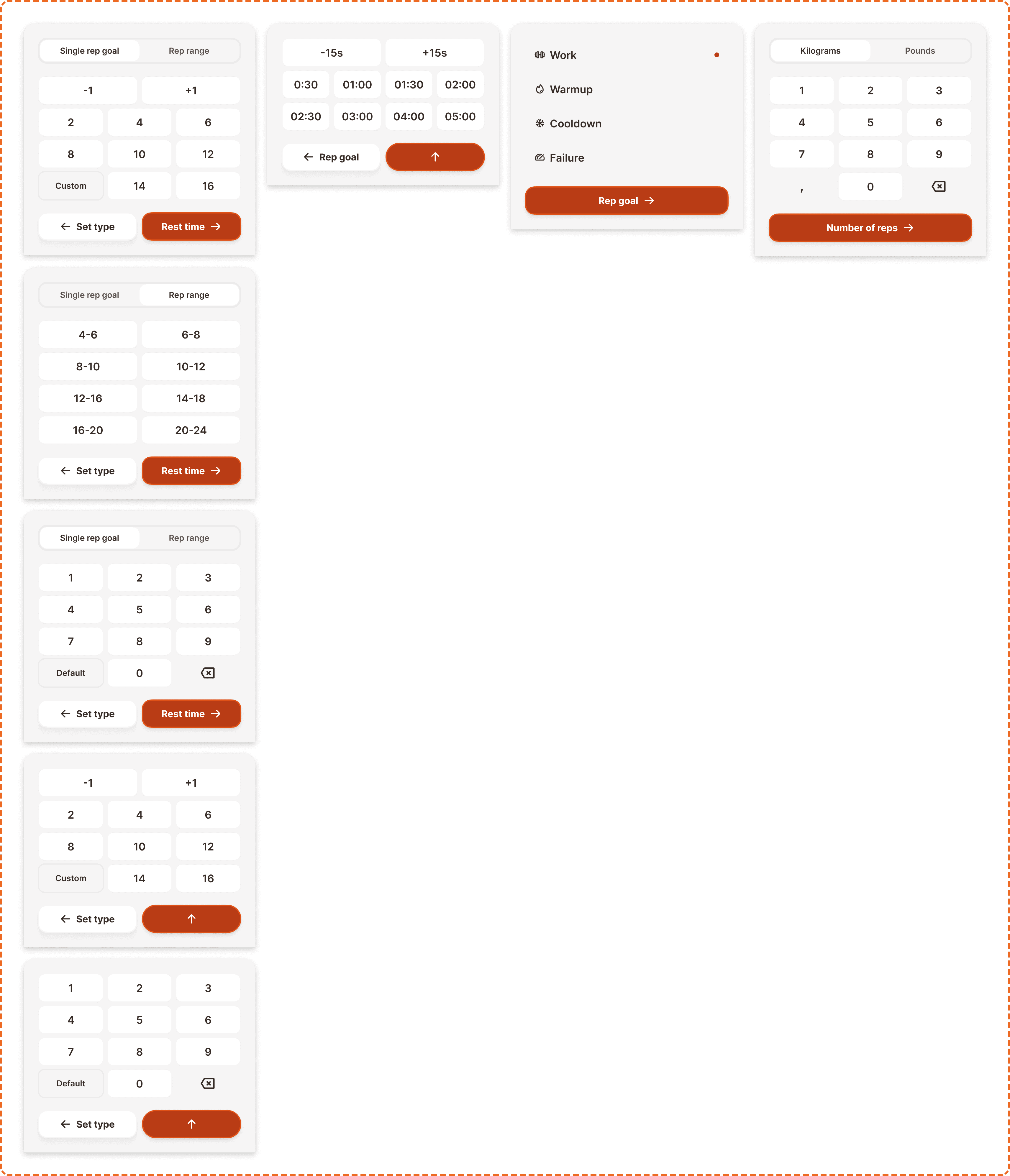
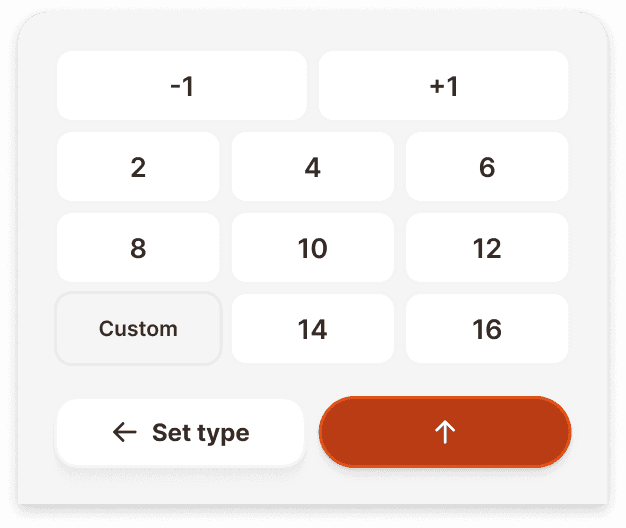
Single rep goal (type=single): Shows preset rep buttons arranged in a grid: -1, +1 (increment/decrement the current value), then common rep counts (2, 4, 6, 8, 10, 12, 16) and a "Custom" button that switches to the custom keypad. A tab bar at the top lets the user switch between "Single rep goal" and "Rep range" modes.
Rep range (type=rep-ranges)
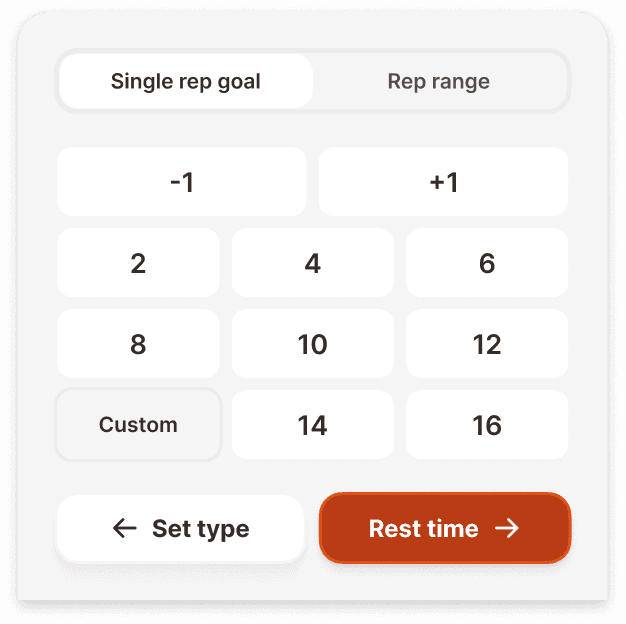
Shows a grid of predefined rep ranges: 4-6, 6-8, 8-10, 10-12, 12-16, 14-18, 16-20, 18-22, 20-24. Tapping a range sets both the minimum and maximum reps for that set. The same tab bar appears at the top.
Custom (type=custom)
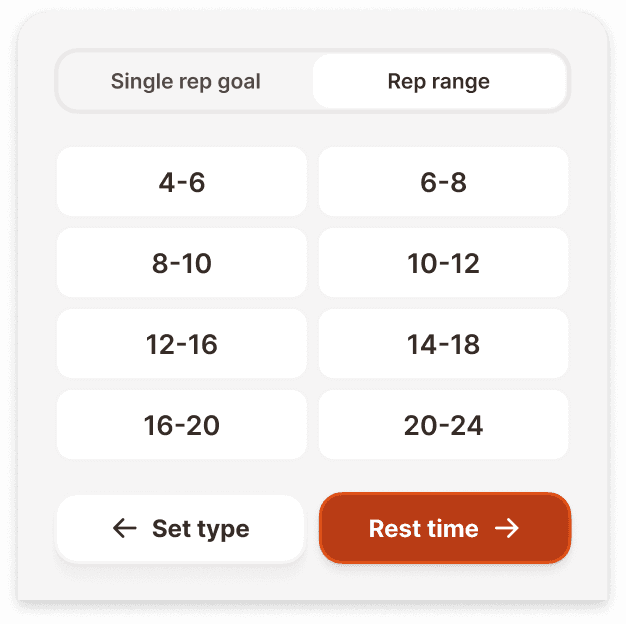
Shows a full numeric keypad (1 through 9, 0, and backspace) for entering any rep count manually. Used when the preset values do not match the user's needs.
Rest (variant=rest)
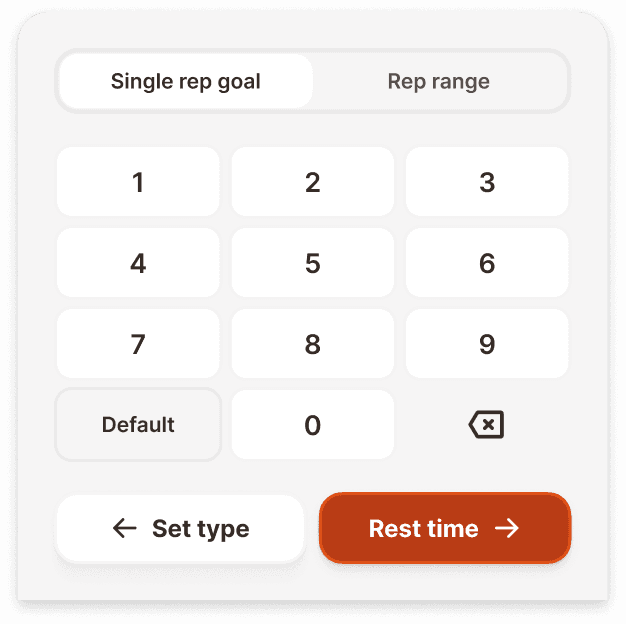
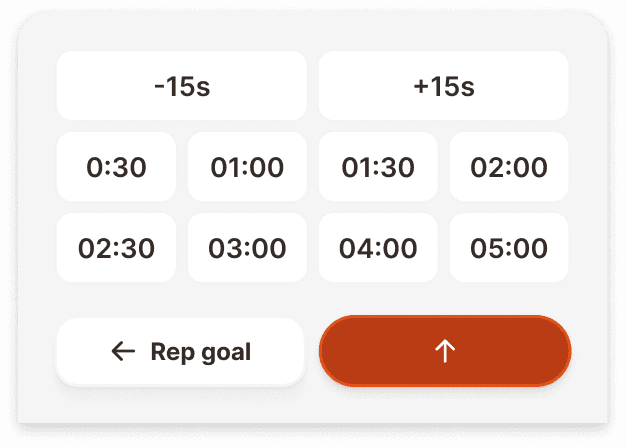
Used when editing the rest cell. Shows a time picker with increment/decrement buttons (-15s, +15s) and preset rest durations: 0:30, 01:00, 01:30, 02:00, 02:30, 03:00, 04:00, 05:00. These presets cover the most common rest periods in strength training.
Set type (variant=set-type)
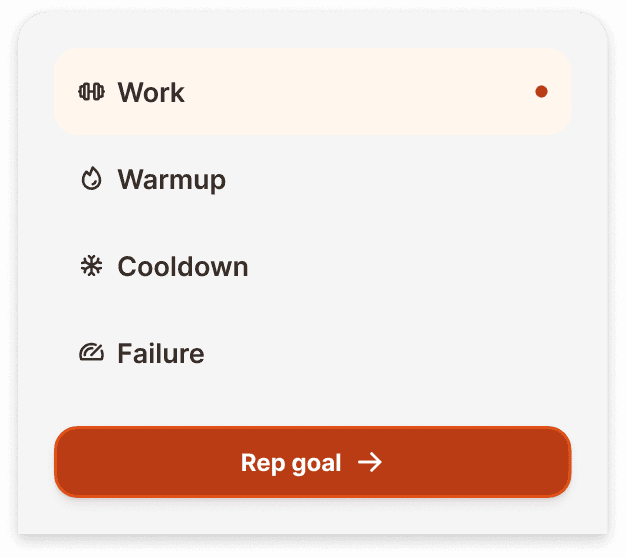
Used when editing the type cell. Shows a vertical list of set type options, each with its icon: Work (dumbbell icon, with an active indicator dot), Warmup (fire icon), Cooldown (snowflake icon), Failure (target icon). Tapping a type selects it and closes the keyboard.
In workout (variant=in-workout)
Used during an active workout session when editing weight or reps cells. Shows a unit toggle tab bar (Kilograms / Pounds) at the top, a full numeric keypad (1 through 9, 0, decimal point, backspace), and a primary action button ("Number of reps →") at the bottom that advances to the next field.
Navigation
The keyboard includes contextual navigation buttons at the bottom that let users move between data entry steps without closing and reopening the keyboard.
Button | Direction | Appears on | Navigates to |
|---|---|---|---|
← Set type | Back | reps variants | Set type keyboard |
Rest time → | Forward | reps variants | Rest time keyboard |
← Rep goal | Back | rest variant | Reps keyboard |
Rep goal → | Forward | set-type variant | Reps keyboard |
Number of reps → | Forward | in-workout variant | Reps field (next cell) |
↑ (confirm) | Confirm | rest variant | Closes keyboard, saves value |
Keys (nested component)
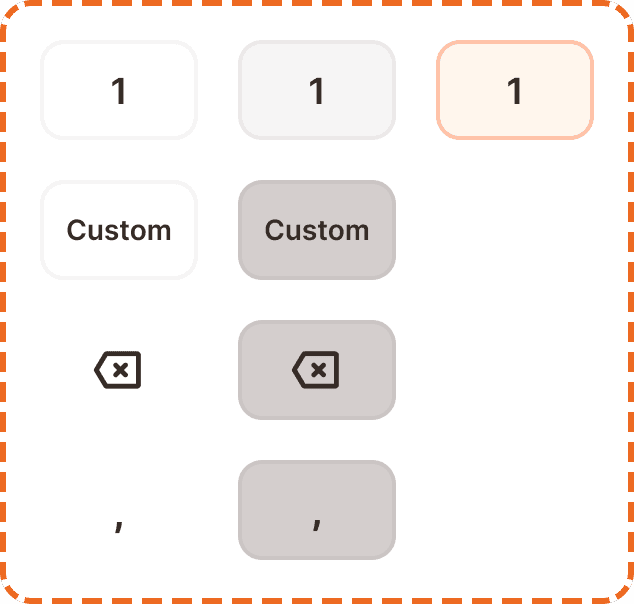
Each individual button on the keyboard is an instance of the key component. It is a 79x50px tappable element.
Interaction
The keyboard slides up from the bottom of the screen when a cell in the exercise table is tapped, replacing the system keyboard. It occupies the bottom portion of the screen and pushes the exercise table content up so the active cell remains visible.
Tapping a preset value (rep count, rest time, or set type) immediately applies it to the active cell. No confirmation step is needed for presets.
On the custom numeric keypad, digits are entered one at a time and appear in the active cell in real time. The backspace key removes the last digit.
The navigation buttons at the bottom allow moving to the next or previous data entry step. This creates a guided flow: the user can set up an entire set row (type → reps → rest) without ever dismissing the keyboard.
Tapping outside the keyboard dismisses it and saves the current value.
Placement
The keyboard always appears at the bottom of the screen, anchored to the bottom edge. It overlays the content below the exercise table and pushes the table content up so the active cell is visible above the keyboard.
The keyboard should never cover the active cell being edited. If the cell would be hidden, the content must scroll up to keep it in view.
On devices with home indicators, the keyboard sits above the safe area.
Accessibility
Touch target. Each key is 79x50px, exceeding the 44px minimum in both dimensions. The preset buttons and navigation buttons also meet the 44px minimum height.
Content
Preset rep values should cover the most common rep ranges in strength training: 2, 4, 6, 8, 10, 12, 16 for single reps. Rep ranges should cover typical hypertrophy and strength ranges: 4-6 through 20-24 in increments of 2.
Preset rest times should cover typical rest periods: 30 seconds for conditioning, 1 to 2 minutes for hypertrophy, 3 to 5 minutes for strength and powerlifting.
Set type labels should be short and universally understood: "Work", "Warmup", "Cooldown", "Failure".
Navigation button labels should describe the destination, not the action: "Rest time →" not "Next →". "← Set type" not "← Back".
Unit toggle labels should be the full word: "Kilograms" and "Pounds", not abbreviated. The active unit should match the user's global preference.
Best practices
The preset values cover the vast majority of use cases. The "Custom" option and numeric keypad exist as an escape hatch, not the primary input method. If user research shows that most users tap "Custom" first, the preset values need to be adjusted.
The navigation flow (Set type → Reps → Rest) should match the column order in the exercise table. If the table columns are reordered, the keyboard navigation must update to match.
During an active workout (in-workout variant), the keyboard should auto populate with the last used weight for that exercise. The user should only need to confirm or adjust, not re-enter from scratch.
The decimal point key only appears on the in-workout variant (for weight entry like "12.5 kg"). It should never appear on the reps or rest keyboards.
The -1/+1 increment buttons on the reps/single keyboard allow fine tuning a preset selection. If the user taps "12" then taps "+1", the value becomes 13. This is faster than switching to the custom keypad for off-preset values.
