Photo slot
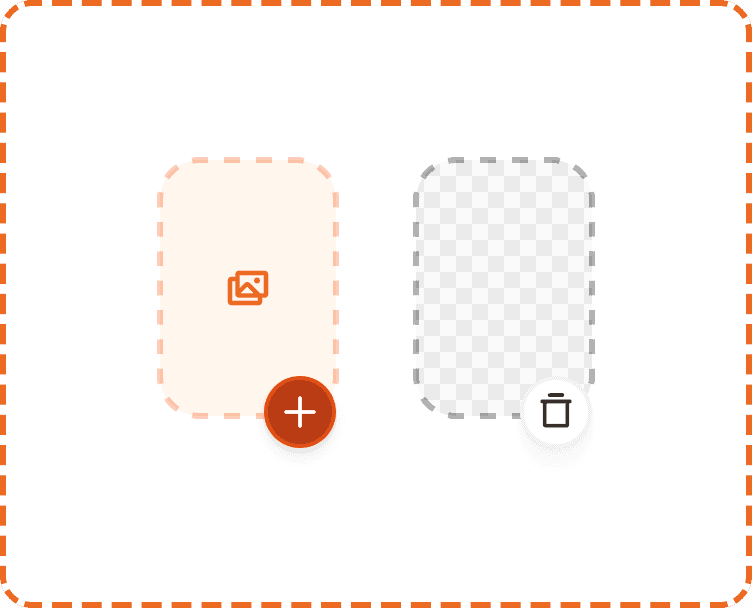
The photo slot is an interactive tile used on the workout finishing screen to let users attach photos to a completed workout. Each slot exists in one of two states: empty (inviting the user to add a photo) or filled (showing the added photo with an option to remove it). Slots are always arranged in a horizontal grid.
When to use
Use the photo slot on the workout finishing screen to let users document their session with photos.
Don't use a photo slot as a general media picker elsewhere in the app — use a dedicated upload component instead.
Variants
Property 1
Value | Description |
|---|---|
| Empty slot. Displays a dashed brand-colored border and an image icon, inviting the user to add a photo. |
| A photo has been added. Displays the photo as a full cover image with a subtle dashed border. |
Props
Prop | Values | Default | Description |
|---|---|---|---|
|
|
| Controls whether the slot is empty or contains a photo. |
|
|
| When |
Structure
Each photo slot is composed of:
Photo area — a rounded tile (radius
responsive/layout/radius/xl) with a dashed border. Indefault, the background isbroz-bg/interactive/middle/default; infilled, the photo covers the full area.Action button — a circular pill (36×36px, radius
responsive/layout/radius/rounded) anchored to the bottom-right corner of the tile, overlapping it. Visible only wheneditable=true.
Action button per variant
Variant | Background | Border | Icon | Action |
|---|---|---|---|---|
|
|
| Plus / add | Opens the photo picker |
|
|
| Trash / delete | Opens a confirmation modal before removing the photo |
Sizes
Height is fixed at 128px. Width follows the grid layout.
Interaction
Tapping anywhere on a
defaultslot opens the photo picker.Tapping the action button on a
defaultslot also opens the photo picker.Tapping the action button on a
filledslot opens a confirmation modal asking the user to confirm deletion before the photo is removed.When
editable=false, the slot is non-interactive. No button is shown and tapping the slot does nothing.
Placement
Photo slots are always placed in a horizontal grid on the workout finishing screen. They should not be used outside of this grid context or on non-finishing screens.
Tokens
Element | Token |
|---|---|
Default slot background |
|
Default slot border |
|
Filled slot border |
|
Photo area corner radius |
|
Add button background |
|
Add button border |
|
Remove button background |
|
Remove button border |
|
Button corner radius |
|
Add button shadow |
|
Remove button shadow |
|
Image icon color |
|